Branded Client Portal for External Ops Layer | ScaleLabs

ScaleLabs helps ops-heavy B2B teams ship client portals and workflow automation that reduce email chaos, speed up onboarding, and improve visibility across the business.


Table of contents
- The silent cost of status‑update email chains
- What a branded client portal actually is (and isn’t)
- Your portal as an external ops layer, not a second system
- How to add a portal without re‑platforming CRM, ERP, or ticketing tools
- What clients really need to see in the portal
- Metrics that show your portal is working
- When a portal is the wrong answer
- How ScaleLabs ships portals that your clients actually use
TL;DR
- Status‑update emails quietly eat a huge slice of every week and bury real work.
- A branded portal can sit on top of your existing stack as an external ops layer.
- You don’t need a new CRM or ERP; you need a clear workflow and a clean client view.
- Start small: one use case, mapped statuses, minimal fields, and 2–3 integrations.
- Measure email volume, cycle time, and “where are we at?” messages per account.
On Monday morning, your inbox is already a graveyard of “Quick status?” and “Any update on this?” threads. Somewhere inside those chains are real decisions, but your team is stuck forwarding screenshots from half a dozen systems instead of moving work forward. A branded client portal promises to clean that up, yet plenty of operations leaders hesitate because they don’t have the appetite—or the budget—to rip out their CRM, ERP, or ticketing tools.
If that sounds like your world, this article is for you. We’ll walk through how to treat the portal as an external ops layer that sits on top of what you already run today, kills most status‑update emails, and gives clients the visibility they’ve been asking for—without a multi‑year re‑platform project.
The silent cost of status‑update email chains
Let’s start with the thing everyone feels but rarely quantifies: email overhead.
Multiple studies have landed on the same rough number: knowledge workers spend around a quarter to a third of their week in email—roughly 10–14 hours. Recent workplace email statistics and McKinsey’s analysis of knowledge worker email time both point to email consuming about 28% of the typical workweek.
Even if your team is lean and disciplined, a big chunk of that time is “Where are we at on Project X?” and “Can you resend that file?”

Without a branded client portal, inboxes quietly become the de facto status system.
- Coordinators trawl through long threads to piece together what already happened.
- Account managers rewrite the same summary five different ways for five different stakeholders.
- Leads get pulled into every small delay because clients have no other place to look.
In operations‑heavy businesses—engineering firms, manufacturers, utilities, construction, insurance—the pattern is even sharper. Each project or case involves multiple systems (CRM, ERP, scheduling, document storage), but the client only ever sees email. When projects scale, inboxes turn into the de facto “client portal,” and everyone loses.
That much time in the inbox is amplified by context switching. Research on interruption science and task switching finds that knowledge workers switch tasks every few minutes and can take more than 20 minutes to fully regain focus after an interruption—exactly what happens when status‑update emails drip in all day.
“Email is great for decisions and nuance. It’s terrible as a system of record for ongoing status.”
If your team spends more time explaining the work than doing the work, you don’t have a people problem. You have a workflow and visibility problem.
What a branded client portal actually is (and isn’t)
So what do we mean by “branded client portal”?
In plain language: it’s a secure, white‑label portal or a web app where your clients log in to see where their work stands, share documents, respond to requests, and approve steps—under your brand, not a generic tool’s.
At ScaleLabs’ client portal projects, the basics usually look like this:
- High‑level status for each project, case, job, or engagement (e.g., Requested → In Review → Scheduled → In Progress → Complete).
- A single thread of updates and comments per item, instead of many email chains.
- File upload/download with clean version history, not “Final_v9_really_final.pdf”.
- Approvals and sign‑offs with timestamps and a simple audit trail.
- Notifications to bring people back to the portal when something needs attention.
What a portal is not
- It’s not a replacement for your CRM or ERP.
- It’s not a full copy of your internal workflow.
- It’s not a ticketing tool for every small interaction.
The moment you try to show every internal nuance to clients, the portal becomes confusing and your team stops using it. The sweet spot is simple: clients see the work in language they understand; your team stays in the tools they already use.
If you want a deeper dive into sector‑specific versions of this, the ScaleLabs team has broken down what this looks like in an accounting client portal as well—same idea, different labels.
Your portal is an external ops layer, not a second system
The most useful mental model we’ve seen with operations leaders is this three‑layer stack:
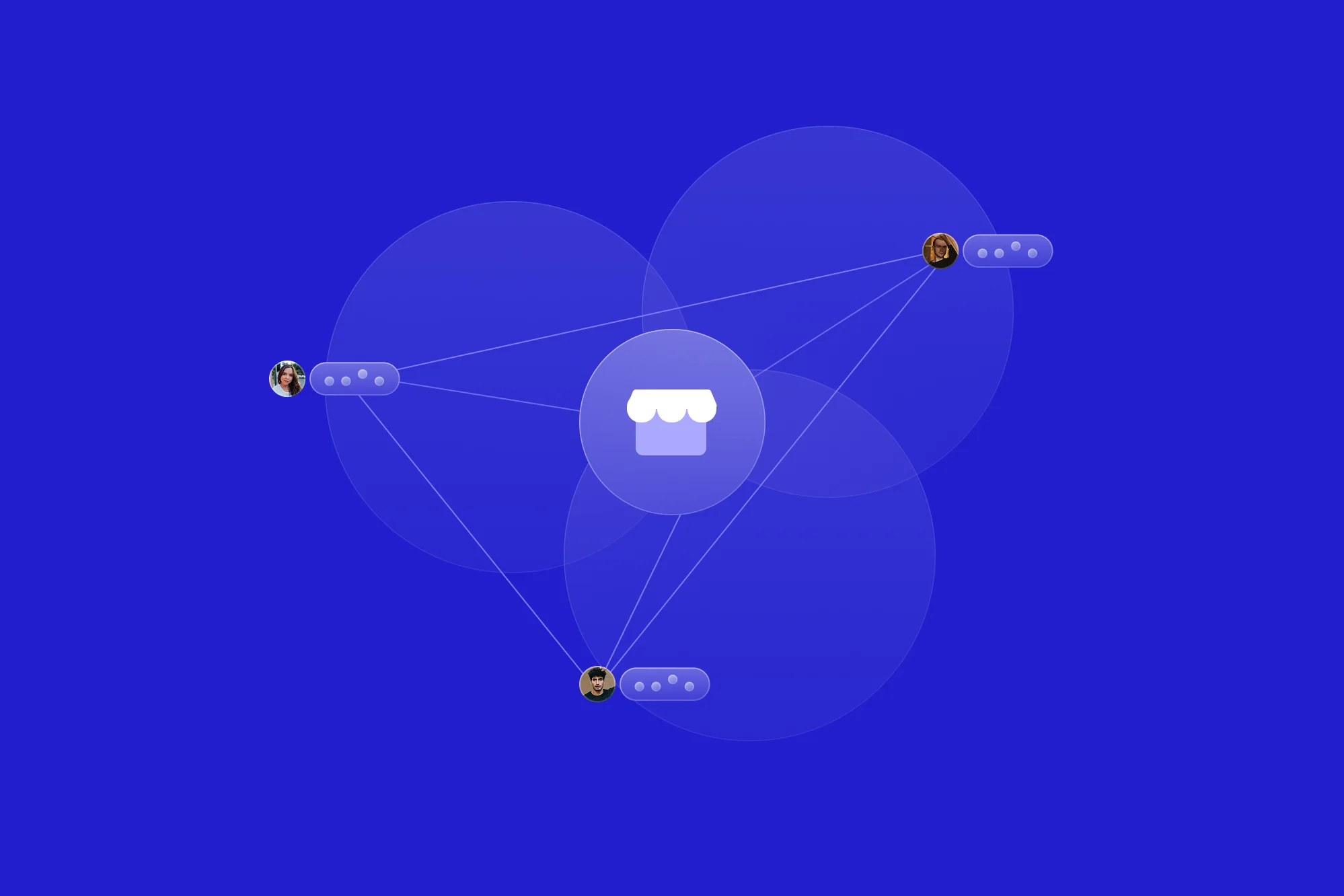
Your portal lives in that third layer. Its job is not to replace Salesforce or NetSuite—it’s to read just enough from those systems (and your internal workflow) to give clients a clean, trustworthy, branded view of progress.

A branded client portal sits as an external ops layer on top of your existing CRM and ERP stack.
Semantic “glue” between people, systems, and clients
When you treat the portal as an external ops layer, a few things click into place:
- CRM ↔ portal: The opportunity or account in your CRM links to client‑visible projects, stages, and SLAs.
- ERP ↔ portal: Orders, jobs, or work orders in the ERP surface as status and key dates.
- Docs ↔ portal: Files in SharePoint, Google Drive, or an S3 bucket appear as organized, permissioned documents.
Internally, your team still lives in familiar tools. Externally, clients see one clean surface with your logo on it. That’s the “ops layer” mindset: direction and clarity at the edges, stability at the core.
ScaleLabs’ own AI implementation work on portals often adds AI agents here—to check forms, route items, and nudge the next step—without changing where data is ultimately stored.
How to add a portal without re‑platforming CRM, ERP, or ticketing tools
Here’s the big question we hear from COOs and Heads of Ops:
“Can we launch a portal without changing our core systems?”
Yes—if you respect a few constraints. Think of this as a playbook you can run:
Step 1 – Pick one high‑noise workflow
Start where status‑update emails hurt the most. Typical candidates:
- Engineering job progress for repeat B2B clients.
- Manufacturing or print production runs with many line items.
- Accounting WIP for recurring engagements.
- Insurance onboarding and engagement models or claims with dozens of documents.
Ask one simple question: “Where are we re‑typing the same status for clients more than twice a week?” That’s your first portal use case.
Step 2 – Map a client‑facing status model
Internally, you might have 17 sub‑steps. Clients don’t need all of them. They need a handful of clear states, for example:
- Requested
- In review
- Scheduled
- In progress
- Completed
For each status, define:
- Which internal system “owns” the truth (CRM, ERP, project tool).
- What event should flip the status for the client (order created, job scheduled, invoice sent, etc.).
- What, if any, document or note should appear?
Step 3 – Connect just enough data
You do not need 40 integrations on day one. In most ScaleLabs builds, the first release leans on 2–3 tight connections plus a secure document pattern:
- Read basic project/job data from CRM or ERP.
- Write back a simple “portal status” or “client last viewed” field.
- Use a secure document exchange workflow so files live in your storage, not in email—see how ScaleLabs structures secure document exchange inside client portals.
Because the portal is its own app, you can adjust mappings over time without touching the core ERP or CRM schema.
Step 4 – Automate the boring, not the judgment
This is where AI and workflow automation actually help:
- Trigger status changes when certain fields change.
- Pre‑fill client‑visible summaries from internal notes for review.
- Detect missing documents and nudge the right party.
Humans still handle exceptions and edge cases. The portal simply stops them from rewriting the same “We’re in production, ETA next Friday” note 30 times a week.
What clients really need to see in the portal
Every company says “our clients are different,” but the core asks are remarkably consistent:
- Clarity: What’s in progress, what’s blocked, what’s done?
- Next step: Do you need something from me right now?
- Source of truth: Where are the latest files and approvals?
- History: What did we decide last time?

The best branded client portals answer simple client questions about status, next steps, and source of truth.
Designing the external view of internal ops
When ScaleLabs built portals for teams like Vinyl Labs, the winning patterns were surprisingly simple: one dashboard, a clear list of jobs, high‑level stages, and a place to drop files and approvals. You can see the same principles in the ScaleLabs client portal overview.
On the client side, screens often boil down to:
- Account / project dashboard: All active work, color‑coded by status.
- Job detail: Timeline, current stage, key dates, and files.
- Requests: Open items where the client needs to respond.
- Approvals: One tab showing everything waiting for sign‑off.
Notice what’s missing: internal staffing, every subtask, and all your internal commentary. Clients want confidence, not exposure to your project plan.
For some industries—like accounting or insurance—you may expose more structured lists (e.g., PBC items, claim documents). That’s why ScaleLabs leans on industry‑specific portal workflows for accounting firms and similar templates in other sectors.
Metrics that show your portal is working
You don’t need a PhD in analytics to know whether your portal is paying off. A handful of simple metrics tell the story.
1. Status‑related email volume
Count how many emails in a given account or project are purely asking for status or re‑sending files. After rollout, that number should drop sharply. In many cases, research suggests teams can reclaim 20–25% of their communication time with better tools and shared context; CloudHQ’s workplace email statistics highlight similar gains from reducing email overload.
2. Cycle time from “approved” to “in progress.”
Measure the lag between a client approval and work starting internally. When approvals and notifications run through the portal instead of scattered inboxes, that gap tends to shrink.
3. Coordinator load per active project
Track how many projects one coordinator can comfortably handle. Portals that centralise updates and documents usually let coordinators handle more accounts without burning out.
4. “Where are we at?” messages per account
Simple but powerful: count how often key clients ask for status in a given quarter. The goal isn’t zero communication; it’s fewer low‑value check‑ins and more focused conversations.
When a portal is the wrong answer
There are situations where a branded portal isn’t the move—at least not yet:
- Your internal process is different on every project, with no stable backbone.
- Data about work lives in personal spreadsheets, not shared systems.
- Client interactions are one‑off and infrequent, with no real “workflow.”
In those cases, the first step is often an internal workflow or vendor portal that standardises how work flows through your team. Once you’ve got consistent stages and data in a shared place, an external client portal becomes much easier to ship.
This is why ScaleLabs talks about “AI for the real economy” in terms of workflows, not buzzwords. The gains show up when you connect real processes and people—not when you bolt a new interface onto chaos.
How ScaleLabs ships portals that your clients actually use
ScaleLabs builds custom client portals and vendor/customer portals for operations‑intensive teams that are tired of running their business from email and spreadsheets.
A practical build pattern we use again and again
- Map the workflow and external view. One working session to define client‑facing stages, key fields, and which systems already hold the data.
- Design the portal screens. Dashboards, detail pages, request lists, and approvals that match how your clients think.
- Connect core systems. Wire up CRM/ERP and document storage, plus AI‑driven checks and triggers where they bring real leverage.
- Launch a focused pilot. Start with one business line or segment, collect feedback, and tighten before rolling out broadly.
Because the portal sits as an external ops layer, your core systems stay in place. You get a cleaner client experience and fewer status‑update emails in weeks, not years.
What this looks like in practice
Across projects, we see the same pattern repeat:
- Clients start logging in for updates instead of emailing the account owner.
- Coordinators stop copy‑pasting from ERP or CRM into “quick summary” emails.
- Leaders get a top‑down view of active work without asking for fresh spreadsheets.
If you’re curious whether a portal makes sense for your specific workflow, the easiest next step is a short conversation with the team that spends its days building AI‑powered portals for real‑world operations.
Book a call and we’ll pressure‑test one workflow together: what clients see, which systems stay, and how fast you could turn off the worst of those status‑update threads.
Key takeaway
You don’t need to re‑platform your entire stack to give clients the visibility they keep asking for. Treat the portal as an external ops layer—fed by your CRM, ERP, and internal tools—and you can move status‑update emails, scattered files, and “just checking in” calls into one branded space that finally matches how your operations really work.